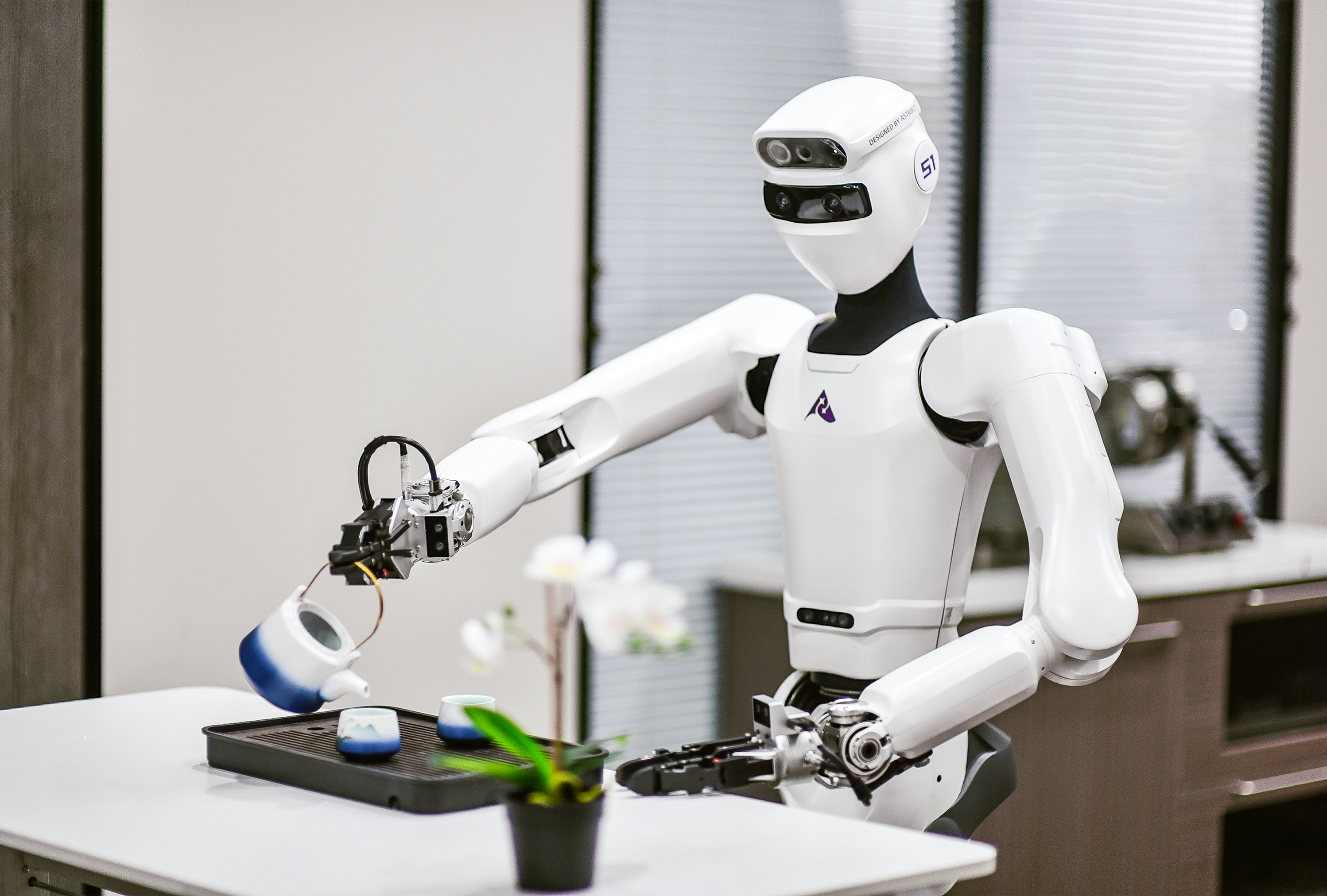
Astribot S1 Humanoid Robot

Buying for a school, lab, or business?
Volume pricing and purchase orders available.
Request a Quote
Quote requests go to support@roboticsselect.com — we respond within one business day. Prefer email? Email us directly.
-
 Free U.S. Shipping
No minimums, no fees
Free U.S. Shipping
No minimums, no fees
-
 Authorized Dealer
Direct partnership
Authorized Dealer
Direct partnership
-
 2-Year Warranty
Backed by the manufacturer
2-Year Warranty
Backed by the manufacturer
-
 Secure Checkout
Your payment data is always protected
Secure Checkout
Your payment data is always protected
Price Match Guarantee
We match the lowest online price on the products we sell — and if you find a lower price on a product listed over $2,000, we will beat it by $50. Purchase from our store first, then send proof of the lower price (a screenshot, invoice, or email) to support@roboticsselect.com and we will refund the difference.
A few requirements: the competitor must be an authorized online retailer of the product with the item in stock on their website, must be online-only (no retail location), and cannot be a discounter or auction site such as eBay or Overstock. The comparison includes the item price and shipping charges but excludes sales tax.
Rebates, buy-one-get-one offers, and special once-a-year promotions such as Black Friday and Cyber Monday are not eligible. Certain exceptions may apply.
Returns & Refunds
Cancel any time before your order ships for a full refund, free of charge. Custom and made-to-order products are put into production for your specific order, so all sales are final on those items.
You have 30 days from the date you receive an item to start a return — email support@roboticsselect.com or call (412) 415-7375. Products must be returned unopened and unused. Some brands set their own return terms, and the brand-specific policy on the product page overrides the general 30-day window; if the manufacturer will not permit a return, we cannot offer one.
Outright returns after shipment incur a 25% cancellation fee plus return shipping, and manufacturer restocking fees (usually around 20%) may also apply — return shipping costs are the customer's responsibility. Refunds go to your original payment method and are processed within 10 days of our receiving the returned product.
Inspect the package when it arrives: note any damage when signing for delivery and send photos to support@roboticsselect.com within 24 hours — freight damage claims are not valid after 24 hours.
Shipping & Delivery
Standard curbside delivery is always completely free. Most orders ship out within 1-5 business days, and delivery takes 5-8 business days once shipped (estimated delivery 6-13 business days). All shipping times are estimates and can vary by brand, especially for made-to-order items.
Orders ship fully tracked via USPS, UPS, or FedEx, and we email your tracking information within 24 hours of the order leaving the warehouse. If tracking hasn't arrived within six business days of ordering, contact support@roboticsselect.com.
Upgraded delivery options are also available: Threshold Shipping brings the item onto your porch or into a sheltered/garage area, and White Glove Delivery brings it into your room of choice, includes minor assembly, and removes all packaging.
We do not ship outside the USA, with limited exceptions — if checkout accepts your shipping address, we can deliver to it.
Financing Options
Split your purchase into 4 equal, biweekly payments at 0% APR with Shop Pay Installments — no hidden fees and no late fees. For larger orders, monthly installment plans may also be available, with rates from 0% APR or 10-36% APR depending on your purchase amount and eligibility.
Approval is fast and real-time: Shop Pay Installments is powered by Affirm and gives you a decision in seconds at checkout. Checking your eligibility is a soft credit check that does not affect your credit score, and while there are no late fees, partial or late payments may affect your eligibility to use the program in the future.
To qualify, you need a United States billing address and a U.S. mobile phone number that can receive SMS. Prefer PayPal? Choose PayPal Pay Later at checkout to split eligible purchases into interest-free installments (subject to PayPal approval).